⏱️ Time Tracking
Card Tracking
Every card gets a Start Timer button. You can use automatic timers or log work manually.
Always Visible Tracking
No matter which card you're viewing, you'll always see all of your currently active tracking sessions. This means:
- Cross-card visibility: If you start tracking time on Card A, you'll see a tracking bar showing Card A's active timer even when you're viewing Card B or any other card
- Cross-board visibility: Active tracking sessions from other boards in your workspace are also visible, so you can see what you're tracking even when you're on a different board
- Never lose track: This ensures you're always aware of what you're currently tracking, preventing you from accidentally leaving timers running or forgetting about active sessions
- Clear identification: The interface clearly shows which card is being tracked and where it's located, making it easy to identify your active tracking sessions at a glance
📡 Live Progress
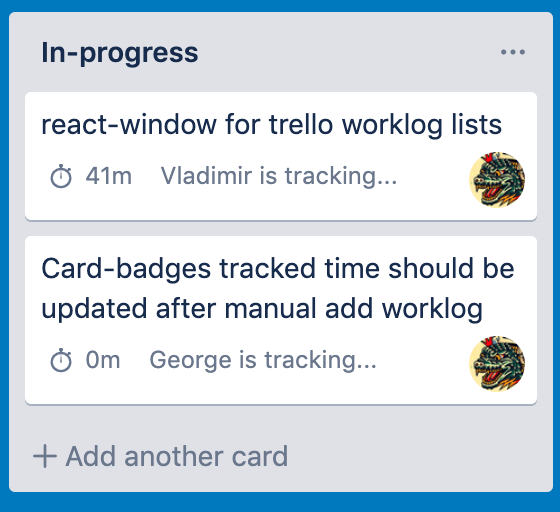
See your teammates' worklogs and comments in real-time as they track time. Live updates appear in three places:
- On cards — View active timers and recent worklogs directly on each card
- On the board — See who's currently working across all cards at a glance
- In the board tracking bar — Monitor all live activity and worklog comments from your team
No need to refresh—everything updates automatically as your teammates log their work.
🧭 Board Tracking Bar
The Board Tracking Bar (Dashboard) gives you a complete overview of all worklogs on the current board. Open it from the board menu to quickly understand what your team is working on and how time is being spent.
- Tracking Bar Widget — Shows all of your active timers on the workspace. You can play, pause, stop, and add comments directly from here.
- Worklogs List — A full history of worklogs for the board, including who worked on what, when they worked, and for how long.
- Worklogs List (with Live Worklogs)
This is where live timers appear.
In-progress worklogs show up directly in the list, mixed with regular worklogs.
They look like normal entries but:- have a LIVE badge
- show a ticking timer
- update automatically with no refresh
- are saved as a regular worklog only when the timer stops
- Live Updates — New worklogs from teammates appear instantly as they track time—no manual refresh required.
- Team Overview — Summaries of total time, individual contributions, and currently active work across the board.
Features
- Filter by team members
- Group by card
- Date filtering
- Total time insights
The Dashboard provides a clear, high-level picture of your board’s activity, making it easier to track progress, spot bottlenecks, and understand how your team’s time is allocated.
🔄 Multi Tracking
Chronos supports running multiple timers in parallel, letting you keep each task’s time separate even when you multitask. Whether you enable it depends on your workspace policy.
Default behavior (feature off)
- You can only track one card per board at any given time.
- You may track different cards across different boards simultaneously.
Enabling Multi Tracking
Workspace admins can enable full multi-tracking in the Chronos board settings. Once enabled:
- Users can run several timers on the same board at the same time.
- All active timers surface in the Tracking Bar regardless of where they were started.
Multi tracking is handy when you frequently context-switch, juggle parallel tasks, or need to capture time across multiple cards in quick succession.
Staying in control
More timers mean more awareness. The Tracking Bar keeps you on top of everything:
- All active timers stay visible wherever you are.
- You can pause or stop any timer from any board.
- Live worklogs are clearly marked inside the Worklogs List.
- Cross-board activity is always shown so you never lose track of background timers.